
Add-ons and damage protection for Shopify rentals
By Rakun Digital · Published November 15, 2026
Shopify rentals can include optional extras that raise the order value without touching the daily rate: accessories, cleaning fees, delivery surcharges, or a non-refundable damage-protection fee. Extras also let customers tailor the booking to what they actually need, which is often why they finish the checkout instead of abandoning it. In RD Rentals every extra is an upgrade you attach to a rental variant. The customer picks upgrades on the booking calendar, and checkout charges them as separate lines next to the rental price. This guide explains what RD Rentals supports, how extras are priced, and how the whole flow works. For how the app bills the rental itself, see the pricing guide; for how units and blackouts work, see the availability guide.
Damage protection vs. a security deposit
RD Rentals does not sell insurance or a damage-protection product, and neither can a Shopify app: damage protection in this context is just a fee and a policy you define. Two different tools cover it:
- Security deposit. A refundable amount charged at checkout on top of the rent. RD Rentals returns it in full when the item comes back on time and in good condition. Deducting something for damage is a manual decision you make from the Shopify order; the app never keeps part of a deposit automatically. Set-up, refunds, and policy wording are covered in the deposits and damage policy guide.
- Damage-protection fee. A non-refundable surcharge the customer pays for peace of mind, similar to a damage waiver at a car rental counter. RD Rentals has no dedicated damage-fee field: you create it as a regular upgrade with a flat price and say in your store policy that it is non-refundable.
The two work well together because they answer two opposite fears. The customer fears a surprise damage bill after the rental, and a small non-refundable protection fee removes that worry for every booking. You fear serious damage the fee could never cover, and the larger refundable deposit protects you there. Whatever you choose, write it into the damage policy the deposit guide helps you draft, because customers see both amounts at checkout.
Which extras work with RD Rentals
Every optional extra is created the same way, on the product's Upgrades tab. An upgrade has a name, a flat price, an optional description, and an optional image. Typical uses:
- Accessories. A spare battery, carry case, tripod, or lens cleaning kit offered alongside the main item. The description and photo are shown on the storefront, so the customer knows exactly what they are adding.
- Cleaning fee. A flat charge per rental that covers turnaround work between bookings. Because it is flat, a one-day rental and a two-week rental pay the same.
- Delivery or pickup surcharge. A flat fee added to the order when you hand-deliver or accept pickup, regardless of distance.
- Damage-protection fee. A flat, non-refundable surcharge as described above. Explain in your product page or policy that it is not insurance and not refundable.
There is no practical limit on how many upgrades a variant can offer, and customers can tick any number of them. Still, keep the list short: a handful of clear, relevant extras is much easier to decide on than a long menu, and each extra you drop is one more decision the customer never has to make. A customer who rents two units of the same variant pays each selected upgrade twice, because upgrades are charged per rented unit; say so in the description so multi-unit renters are not surprised at checkout.
How extras are priced: flat fees, and where percentages fit
Each upgrade carries exactly one price you enter, in your store currency. That price is fixed: it does not scale with the number of rental days, the rental total, or the variant's daily rate. A $15.00 cleaning fee is $15.00 whether the rental lasts one day or ten. For most extras this is what you want anyway, and it keeps the checkout quote predictable: the customer sees every extra's price on the calendar before they commit, so the total they meet at checkout is the total they already agreed to. The upgrade name is what shows up in that summary and at checkout, so name extras the way customers think about them (Cleaning fee, Damage protection), not the way you manage them internally.
RD Rentals does support percentage pricing, but in a different place: the rental's own daily rates. Pricing tiers can be defined as a percentage of the base daily rate, for example 85% of the daily rate for rentals of 4 to 7 days, so longer bookings automatically get a lower effective day price. Those percentages shape the rental price itself; they are not applied to add-ons. If you want an extra to scale with the rental length, there is no percent-of-total mode for upgrades: set a flat fee per product, or handle the surcharge outside the checkout.
Prices are also snapshotted per booking. When a customer books, the app records each selected upgrade's name and price at that moment, so raising or lowering an upgrade's price later never changes orders that already exist. The booking detail page in the app lists those booked upgrades and their total separately from the base rental price.
Step by step: setting up upgrades in RD Rentals
- Open the RD Rentals app in your Shopify admin and go to the rental product you want to add extras to.
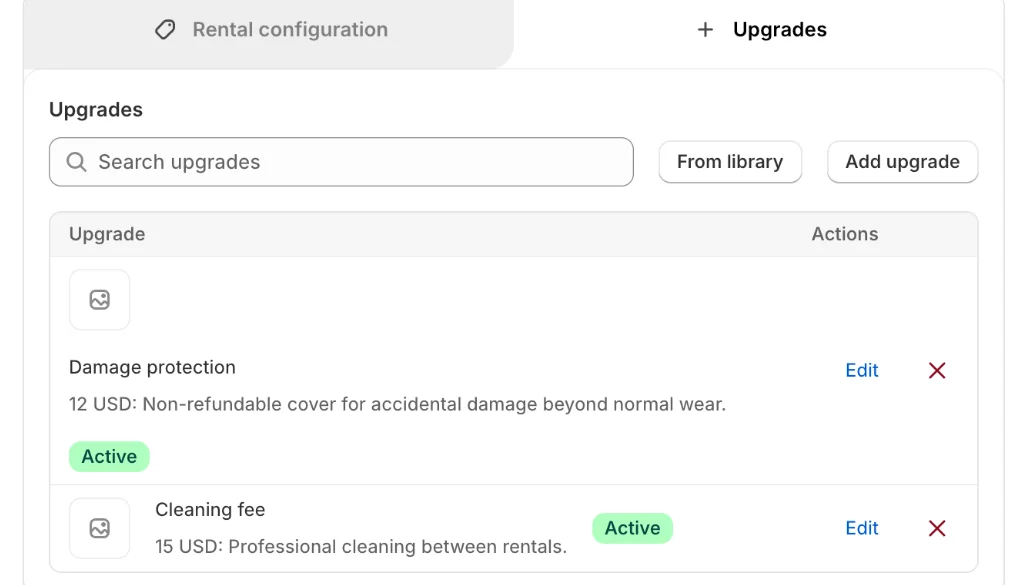
- Open the Upgrades tab on the product's configuration page. Choose Add upgrade to create a new one, or From library to reuse an upgrade you already saved for another product.
- Fill in the details: a name the customer will recognise, the flat price, and an optional description shown on the calendar and at checkout.
- Optionally add an image: drop one on the upload area, click to upload, or pick an existing Shopify file. On the storefront the upgrade then shows its photo and customers can view it in full size.
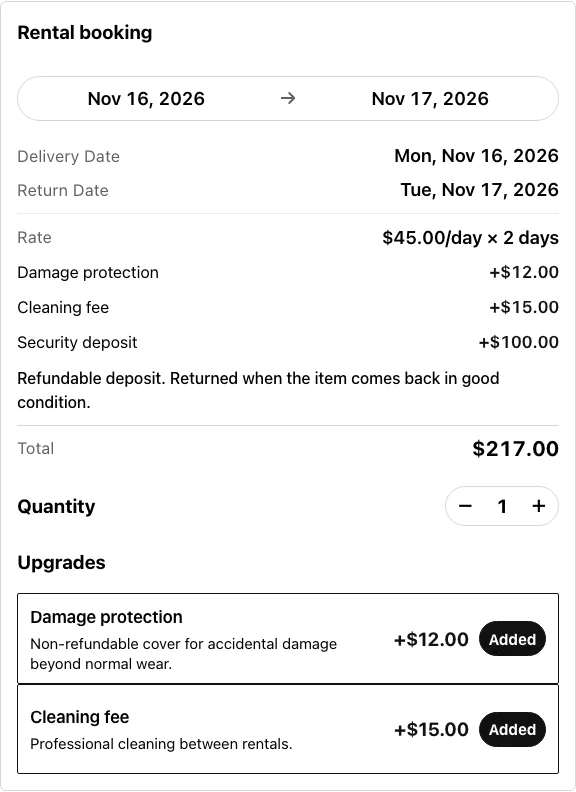
- Save the product. The upgrade immediately appears as a toggle on that variant's booking calendar, alongside the date picker and the price summary.
- Repeat for each extra. Every saved upgrade is also mirrored into a shop-wide upgrade library, so on your next product you can pick it From library and copy it over; the copies stay independent, so editing one product's upgrade later does not change another product's.
- Creating several rental products at once? The bulk-create flow accepts one shared upgrade set, a name, price, and description, and adds the same extras to every product you create in that batch.
How upgrades appear at checkout
- On the storefront, each upgrade appears as a toggle row under the booking calendar. Selected upgrades are sent to the cart as line properties together with the booking, and the calendar's price summary includes them next to the rent and deposit.
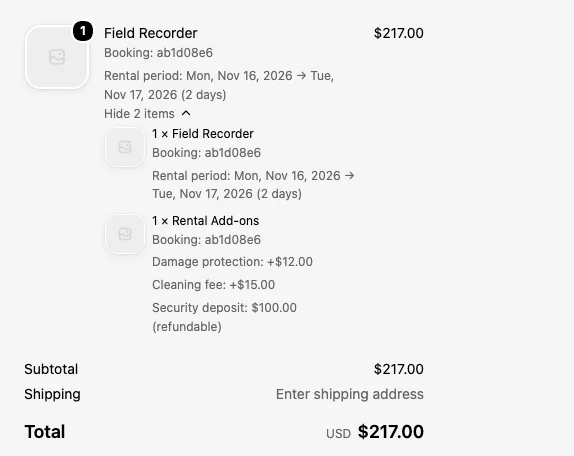
- At checkout the rental price stays on the product line, and the deposit plus all selected upgrades are added as a separate component of that line under Rental Add-ons.
- RD Rentals provisions a hidden product called Rental Add-ons for the shop. It is never published to the online store and customers cannot buy it on its own; the app's cart-transform function uses it to add the deposit and upgrade amounts to the order total.
- Expanding the rental line in checkout reveals the individual rows: the Security deposit, marked refundable, and each selected upgrade with its own price, charged per rented unit.
- If a customer removes an upgrade from their cart before paying, only that amount is removed; the rental and deposit lines stay.
After the order comes in, everything lands on the booking in the app: the base rental price, the upgrades total, and the deposit, each on its own line. That is also where you refund the deposit when the item comes back, as described in the deposits guide.
Frequently asked questions
Can I add damage protection that keeps part of the deposit if the item is returned damaged?
RD Rentals refunds the full refundable security deposit when the item comes back in good condition. Keeping part of the deposit for damage is a manual decision you make from the Shopify order; the app never deducts damage fees automatically. For a guaranteed fee, create a non-refundable upgrade instead.
Do I need to create a separate product for upgrades and the deposit?
No. RD Rentals provisions a hidden Rental Add-ons product for each shop automatically. You create upgrades and set a deposit in the app; the cart-transform function adds them to the checkout as separate lines under that product.
Can an upgrade be priced as a percentage of the rental total instead of a flat fee?
No. Every upgrade is a flat price in your store currency, charged once per rented unit. Percentage pricing in RD Rentals applies only to the rental's own day-band daily rates, for example 85% of the base daily rate for 4 to 7 day rentals.
Can I reuse the same upgrade on several products?
Yes. Every saved upgrade is mirrored into a shop-wide upgrade library. On another product, open From library, find the upgrade, and copy it in. The copies are independent, so a later edit on one product does not affect the others.
What happens to booked orders when I change an upgrade's price?
Nothing. Each booking stores the upgrade's name and price as they were at booking time, so later price changes apply only to new bookings. Existing bookings keep the booked total.