
Managing rental availability on Shopify: units, buffer days, blackouts
By Rakun Digital · Published October 6, 2026
The hardest part of renting is not taking the booking, it is making sure the item is actually free on those dates. Double bookings cost refunds and reputation. Too much caution costs revenue, because the calendar shows items as booked when they are sitting on a shelf.
This guide explains exactly how RD Rentals decides which dates a customer can book, and which settings you control: total units, buffer days, unpaid holds, returns, and blackout dates. Once you know the rules, you can tune the calendar to match how your shop really works. If you have not set up a rental product yet, start with how to set up product rentals on Shopify.
How availability is calculated
Availability is worked out per variant and per day. For every day on the calendar, RD Rentals takes the variant's Total units and subtracts the units already booked on that day. A day is bookable while at least one unit is left. Three things count as booked:
- Awaiting payment. An order was placed but not yet paid. The dates are held for a limited time so the customer can finish paying.
- Confirmed. The order is paid and the rental has not gone out yet.
- Active. The rental has gone out.
Returned, cancelled, and expired bookings do not count. On top of that, each booking keeps its units busy for the variant's buffer days after the end date, and blackout dates close the whole store. The rest of this guide takes these one at a time.
Because RD Rentals tracks availability itself, turn off Shopify inventory tracking (Track quantity in the Shopify product editor) on rentable variants. The app's product page warns you with a Turn off inventory tracking notice when it is on.
Total units: how many you can rent at once
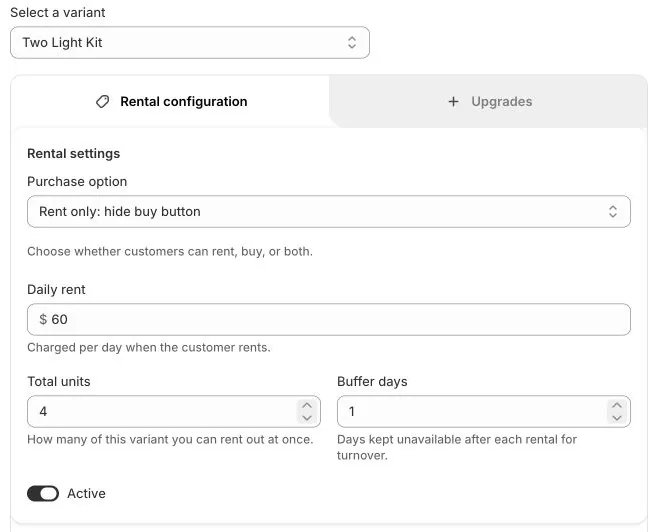
Total units is set on each variant in the Rental settings section. It means how many identical items of that variant you can have out at the same time. If you own three identical tents, set it to 3. If two sizes are separate variants, each variant has its own count.
The storefront calendar has a quantity selector. When a customer asks for more units than are free on every day of their range, the calendar tells them: No units available for these dates, or Only 2 units available for these dates. Here is how three tents might look over a week:
| Day | Booked | Remaining | Can a customer book 2? |
|---|---|---|---|
| Mon | 1 | 2 | Yes |
| Tue | 2 | 1 | No |
| Wed | 3 | 0 | No (day unavailable) |
| Thu | 1 | 2 | Yes |
A range is only bookable if every day in it has enough units, so in this example a customer could book one tent from Monday to Tuesday, but not across Wednesday.
How rental days are counted
The customer picks a start date and an end date on the calendar, and both count as rental days. Monday to Wednesday is 3 days, and the price is worked out for 3 days. The unit is booked on all three. Customers can start a rental today; past days are disabled.
Keep this in mind when you write product copy. If your customers think of a weekend rental as Friday pickup and Monday return, that is 4 calendar days in RD Rentals, and it is priced that way.
Buffer days: time to turn an item around
Most rentals need time between customers: shipping back, inspection, cleaning, charging, repairs. Buffer days on each variant keep the booked units unavailable for that many days after a rental ends. They are added after the end date only, not before the start.
| Buffer days | Unit blocked | Next possible start |
|---|---|---|
| 0 | Mon to Wed | Thursday |
| 1 | Mon to Thu | Friday |
| 2 | Mon to Fri | Saturday |
If you need time before a rental too, for example to ship the item out, include it in the buffer of the previous booking or add it to your stated delivery dates. RD Rentals does not add days before the start.
Store default vs variant setting
Under Settings, the Booking buffer is set in minutes (0 to 1,440) and described as time added between bookings for preparation, cleaning, or handover. It is a default for new rental products: when you add a variant, the minutes are rounded up to whole days. Any value from 1 to 1,440 minutes gives new variants 1 buffer day; 0 gives none. After that, the variant's own Buffer days field is what counts, and you can set it to more than 1.
Unpaid orders and holds
Some payment methods do not complete at checkout: bank transfers, cash on delivery, or payments that are only authorized. RD Rentals still blocks those dates, so another customer cannot take them while the first one pays. These bookings show as Awaiting payment and never count toward your app billing.
A hold does not last forever. It runs for 7 days after the order, or until the rental start date if that comes sooner, and always at least 24 hours from when it is created. The booking page shows the date the dates are held until. When the order is paid, the booking becomes confirmed. If the hold runs out, or the payment is voided or expires, the booking becomes Hold expired and the dates are free again. If a late payment arrives after that and the dates are still free, the booking comes back.
Returns and early returns
A booking becomes active when you fulfill its Shopify order. When the item comes back, open the booking under Bookings and choose Mark returned. A returned booking no longer blocks the calendar. If the customer returns early, marking it returned frees the remaining days straight away.
Blackout dates: when the store is closed
Blackouts close dates for every rental product at once, for holidays, stocktakes, or regular closing days. Open Blackouts in the app and fill in New closed range:
- Name. For your reference. Customers only see the dates as unavailable.
- Schedule. Once for a single range, Every week for regular closing days, or Every year for annual closures such as a holiday period.
- Start and End. The dates of the closure (weekly closures use closed weekdays instead of an end date).
- Closed weekdays. For weekly closures, tick the days you are closed.
- Series end. Repeating closures need an end date. They repeat until then.
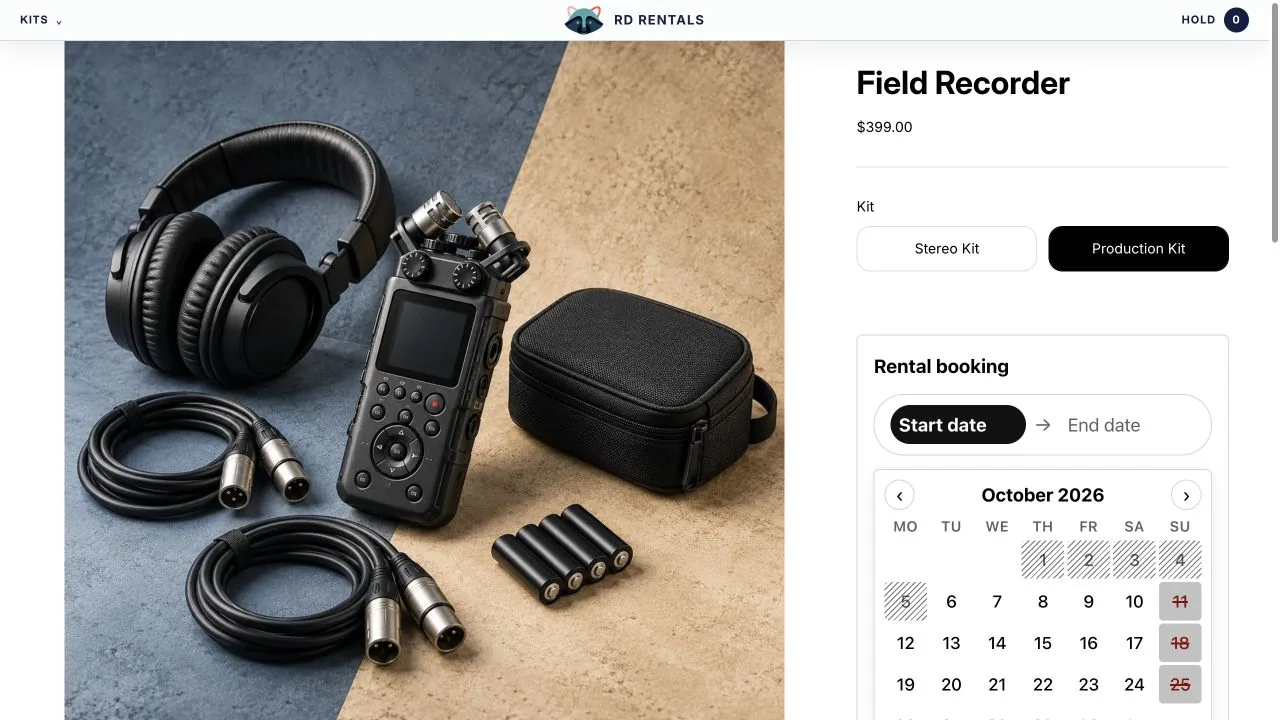
On the storefront, closed days are struck through, and hovering shows Store closed. Booked-out days are striped and show Not available. Days that have already passed are striped too. Saved closures are listed under Saved ranges, with search. Removing a repeating closure removes the whole series.
A new blackout blocks the calendar and new bookings that overlap it. Existing paid bookings stay as they are, so check your Bookings list for overlaps when you add a closure and contact those customers yourself.

How far ahead customers can book
Customers can book within the current month plus the next two months. In October, for example, they can choose dates in October, November, and December. Days after that window show as unavailable in the storefront calendar, and the window moves forward when a new month starts.
Troubleshooting: why is this date unavailable?
| What you see | Likely cause | Where to check |
|---|---|---|
| Dates blocked with no paid order | An unpaid order is holding them | Bookings, filtered to Awaiting payment |
| The day after a rental is blocked | Buffer days on the variant | The variant's Buffer days field |
| Every product is blocked on certain days | A blackout, possibly a weekly or yearly one | Blackouts, Saved ranges |
| Only one unit can be booked | Total units is still 1 (the default) | The variant's Total units field |
| The calendar says This item is not available | The variant has no active rental settings | The product's configuration page and the Active switch |
| Dates stay blocked after a refund | The order was refunded but not cancelled | Cancel the order in Shopify |
| Dates free up before the item is ready | The booking was marked returned early | Mark returned only when the item can go out again |
A simple daily routine
- Open Bookings and sort by dates to see what goes out and comes back today.
- Fulfill orders for rentals going out, so their bookings become active.
- Mark returned items as returned once they are ready for the next customer.
- Filter to Awaiting payment and follow up on unpaid orders that are holding dates.
- Check Needs attention at the top of Bookings and contact any customer whose dates were no longer available.
- Before holidays, add blackouts early so customers never book dates you cannot serve.
Shopify's Orders list can also be filtered by the rental start and end dates RD Rentals adds to each order, which helps when you plan pickups and deliveries from the Shopify admin.
When an order arrives for dates that are no longer available
Two customers can check out for the last unit at almost the same time, or you can add a blackout while someone is in checkout. RD Rentals checks availability again when the order reaches the app. If the dates are no longer free, it creates no booking for that line, so the item is never double booked. The Shopify order itself is not changed and may already be paid. RD Rentals tells you in these ways:
- Needs attention on Bookings. The order appears at the top of the Bookings page with the product, the requested dates, and the reason, for example not enough units left on a given day or an overlap with a store closure.
- A dashboard warning. The dashboard shows how many orders need attention until each one is resolved.
- A tag and a note on the order. RD Rentals adds the tag
rd-rentals-conflictand a note that explains what happened, so you can find these orders in Shopify's Orders list. Any note already on the order is kept. - An email to your store contact email, the address in your Shopify store settings, when email notifications are enabled for the app.
Contact the customer to agree new dates, refund, or cancel the order. When you are done, click Mark resolved next to the order on the Bookings page. If you cancel the order in Shopify, or a booking is created for it later, RD Rentals clears it from the list for you.